
How to Link Google Analytics to Google Ads
Integrate Google Analytics with Google Ads for improved tracking, actionable insights, and better campaign performance metrics.

Google Analytics and Google Ads are two of the most popular digital marketing tools available.
They offer a wide range of features and capabilities that can help marketers successfully promote their products or services in their target market.
For businesses trying to maximize their return on investment from their online advertising efforts, linking Google Ads with Google Analytics can have a huge impact on the success of the campaigns.
The process for Google Ads links is fairly straightforward, but it does require some technical knowledge before you can get started. When you link Google Ads with your Analytics property, you unlock deeper insights into how users interact with your website, how your ad campaigns perform, and how people move through the full customer cycle—from clicking ads to making purchases or consuming content.
For businesses focused on improving performance and maximizing ad spend, connecting these two tools is one of the most effective steps you can take. Whether you're running a single campaign or managing multiple properties under a Google Ads Manager account, integrating the platforms helps you see the full journey and optimize with precision.
In this article, we will walk through the steps required to connect Google Ads with your Google Analytics property in order to take advantage of all available data insights. You’ll learn how to link your accounts, choose the correct property, configure auto tagging, import conversions, and take advantage of advanced analytics features. Follow along to link accounts properly and improve your Google Ads campaigns with accurate, actionable data.
First, we’ll cover how to set up accounts or log into your existing ones. Then we will discuss the steps necessary for linking Ads to Google Analytics so that they are talking to one another.
From there, we’ll explain how to specify what kind of Google Ads data links are needed with each other, as well as how to create custom reports and tags in both platforms. By following along with these instructions, you should be able to build upon both platforms and refine your campaigns based on invaluable data insights from Google Ads links and Analytics.
Additionally, leveraging personalized advertising can further enhance your ability to reach the right audience by using detailed insights gathered from Google Ads data and analytics tracking.
Step 1 – Set Up or Log into Your Google Accounts
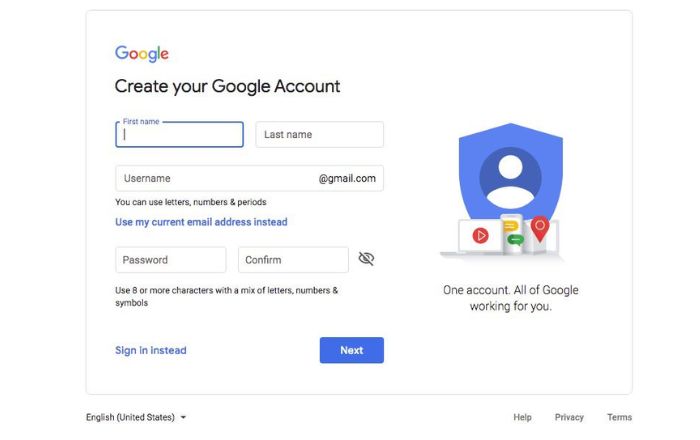
The first thing that you need to do before linking your Google Analytics account with your Google Ads campaign is to create a Google account.
If you do not already have one, you can sign up for free at accounts.google.com.
Once this account is created, you will need to log in using the same user name and password that you used for signing up for your AdWords campaigns. Make sure your Google Analytics 4 property and your Google Ads account (or manager account) use the same email login. This ensures a smooth connection and makes it easier to choose Google Ads accounts during setup.
If both of these accounts already exist and are associated with the same email, then there is no need to create a new one; simply log into each platform by going to their respective login pages (Google Analytics and AdWords).
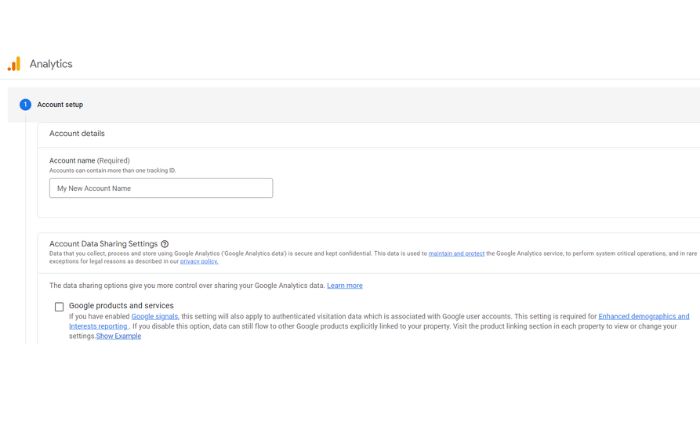
Once inside, it may require additional steps such as registration completion, setting up payment methods, etc…but all of these should take only a few minutes at most if everything else has been set up correctly beforehand.
There may also be an extra layer of activity authorizations required by enterprise customers so make sure that those requirements have been met prior in beginning this step.
Step 2 – Connect Your Google Ads Account with Your Google Analytics Account
Once the above step has been taken, you're ready to connect Ads to Google Analytics.
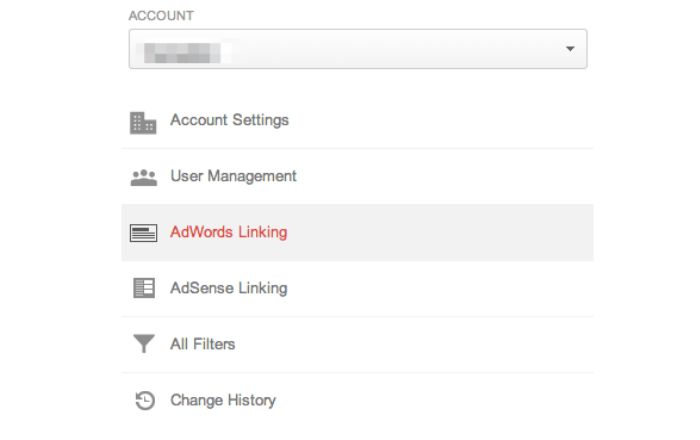
From within your Google Analytics property page, navigate over to “Admin” and select “Google Ads Links” which will be found under the Property column.
Completing this step will generate two separate pieces of information (Client@ID and Website@ID) that need to be copied into your AdWords account in order for them to link properly together.
Once these IDs are added, it is important to ensure that both accounts verify each other before proceeding with any activity linking; if the Client @ID generated by GA does not match up then the linking process could fail altogether, resulting in a mismatch of data between platforms.
Choose your Google Ads account (or google ads manager account) from the list, then hit the blue link button. If you're unsure which account to select, follow the guided prompts—Analytics provides a simple guided tour.
You’ll then have the chance to link Google properties and link accounts from multiple profiles if needed. This is especially helpful if you run various ad campaigns, manage several brands, or operate a YouTube channel where ads drive traffic.
To review your assigned report suites click on “Website Data” then go down to “Linked Reporting Services” in order to check as necessary. This will allow users to make sure all relevant ad accounts have access so that said changes can take full effect.
Once complete, verify that everything is connected. Proper linking ensures your Google Ads metrics, product links, ad impressions, and engagement data flow correctly between platforms.
Step 3 – Select The Data You Would Like to Track
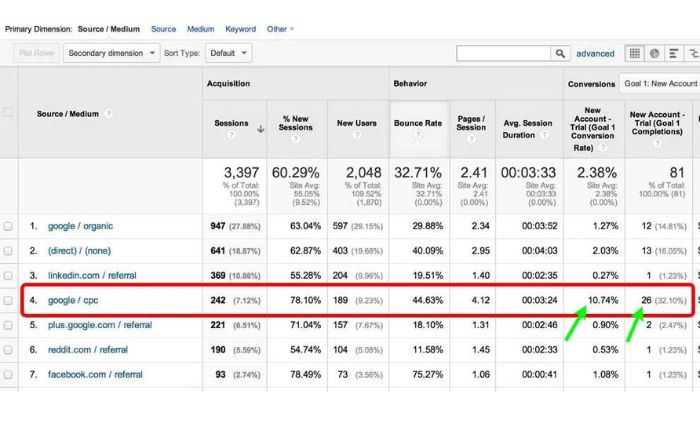
Once the linking process is successful between Google Ads and Analytics, it’s time to select what data you would like to track when they are shared with each other.
This can be done in a few easy steps from within the Google Ads interface.
First, click on “Tools & Settings” in the upper right-hand corner, which will then open up the Tools drop down menu. Click on “Data Sources” followed by selecting “Google Analytics” found within that menu and which Google Ads accounts to link.
On this page, you will see a list of AdWords accounts associated with your login as well as some detailed linking information such as account views and report suites associated with them; select which ones you’d like to link with Analytics so that all relevant activity can be tracked across platforms.
This step ensures that:
- Google Analytics 4 data flows into Ads
- You can import conversions
- You can create audiences for remarketing
- You can see deeper Google Ads metrics across campaigns
You can also choose whether to enable auto tagging or manually add UTM parameters. Auto tagging is generally recommended unless you need to manually tag URLs for a special campaign.
Once this has been completed, save changes and proceed onto customizing tags and creating goals for both tools if desired.
Step 4 – Create Custom Reports and Tags In Each Tool
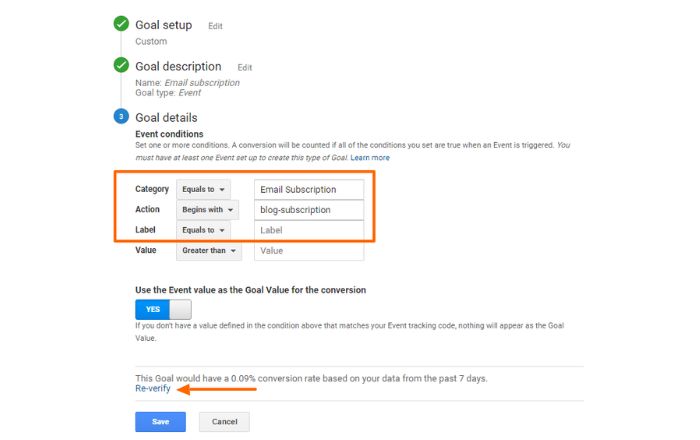
With your ads link successfully established, it is important to think about all additional resources available in order to maximize the campaigns return on investment.
Using Google Analytics 4, you can:
- Track custom events
- Configure conversions
- Add custom parameters
- Build advanced funnels to analyze the customer cycle
In Google Ads, you can:
- Add remarketing tags
- Build audience lists
- Set up enhanced conversions
- Create ad group–level custom tracking
This includes customizing tags, events and goals within each tool as well as setting up multiple campaign variables with Adwords so that controlling specific activity served can be done more efficiently.
Tags are identifiers used by click tracking technology so of course, they need to be created properly in order for this information to be tracked accurately; most analytics tools will require users having to set up custom tags, while others will allow them create automated ones depending on need.
Additionally, useful elements like Goals should also be set up beforehand since these ideas give decisive feedback when evaluating performance based on user activities and customer interactions.
Segments can also play a huge role in better understanding your customers, which Analytics render the use of immensely helpful for marketers when creating highly targeted campaigns across multiple devices.
These analytics features give you the power to understand how users interact, which ads perform well, and how audiences move through your full customer cycle.
Combined with personalized advertising, these tools allow marketers to deliver extremely relevant ads based on real behavior signals.
Step 5– Start Tracking Your Results
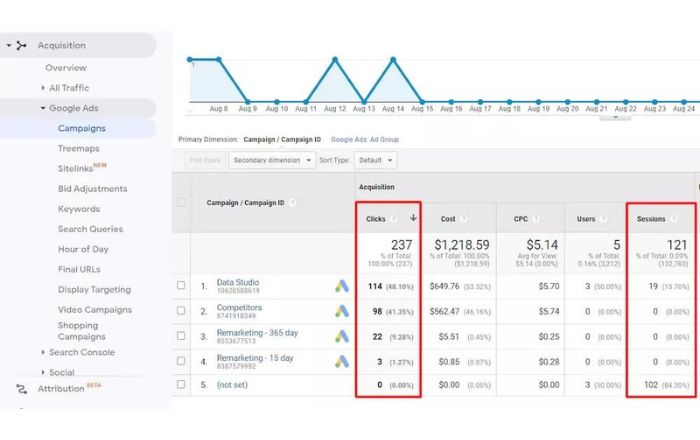
Once all the necessary steps have been taken, now it’s time to track results.
Use Google Ads to analyze campaign performance, and use Google Analytics to dive deeper into behavior, segments, and onsite engagement.
Your combined data lets you:
- See how customers travel from ads to onsite actions
- Optimize ad campaigns based on real onsite behavior
- Build remarketing audiences
- Improve ROI with better analytics features
To get a more detailed view, it might be necessary to generate custom reports containing the past and present activity is broken down across different dimensions like channels, AdWords campaigns, and other specific elements; these extended analytics can provide valuable insight on how customers interact with separate platforms so taking the time to go through different reports available is recommended.
You can also create product links, analyze YouTube ad traffic, and use Google's advanced reporting tools to break down performance by channel, audience, device, and more.
As always, tracking raw data should be done regularly so that users can more accurately interpret their performance overall and make educated decisions based off accurate information going forward.
This can include campaign optimization plans involving expanding offering or tweaking specific aspects for an improved customer experience when engaging with promoted content.
It’s also important to note that there are additional variables, such as audience segmentation and using specialty tools ( ex. Search Console )that need setting up, but those operations require more than just linking both services discussed today; nonetheless, integrating Google Ads with Analytics continues being one of the best strategies available for improving digital marketing efforts dramatically.
As you get comfortable digging into your data, you’ll finally complete the setup needed to take full advantage of all integrations. Many marketers say they do this because they love data—and the insights from linking Ads and Analytics are one of the biggest advantages available.
Linking Google Analytics to Google Ads accounts
In this article, we’ve discussed how to link Google Analytics and Google Ads accounts so that users can take full advantage of their capabilities when creating digital marketing campaigns.
We covered steps from setting up or logging into your Google accounts all the way to customizing tags, events and generating objectives for both platforms.
It should be noted that the above method is for linking an AdWords account with one specific Property in GA, but there are many more possibilities outside of those limitations.
Understanding each platform’s potential and carefully employing certain tactics can lead to major improvements over time, something that any marketer trying to maximize returns on investments heavily relies on.
By following these steps, you can successfully link Google Analytics with your Google Ads account, unlock better reporting, and dramatically improve your ad campaigns.
You’ve now learned how to:
- Connect ads to Google Analytics
- Link properties using the blue link button
- Import conversion data
- Configure auto tagging
- Build audiences and enhanced conversions
- Analyze the full customer cycle
If you want to go deeper, Google offers additional tools like Search Console, which further enrich your understanding of how audiences find and engage with your business.
Once your accounts are linked, your reporting will improve immediately—and your optimization strategies will strengthen based on clear, accurate data.
In short: If you want better results, learn how to link Google Analytics and Google Ads and follow these steps to get the most from your digital marketing efforts.